
Linking Your ChemiDoc Pro Imaging System to BR.io
Before you can export image files from the instrument to BR.io, you must link your ChemiDoc Pro Imaging System to your BR.io user account.
Important: If you experience issues with linking your instrument to BR.io, or with any of the BR.io functions, you might need to add the BR.io domains to the Allowed list. For more information, see Adding BR.io Domains. Contact your system administrator for assistance.
Note: Bio-Rad recommends that you link each instrument user account to a separate BR.io user account.
Before you begin:
| ● | Confirm that the ChemiDoc Pro Imaging System is connected to a network with access to BR.io. |
| ● | Create a user password for your user account on the ChemiDoc Pro Imaging System. |
| ● | Confirm that you have a BR.io user account. |
To link the ChemiDoc Pro Imaging System to your BR.io account
| 1. | Log into Image Lab Touch on the ChemiDoc Pro Imaging System touch screen. |
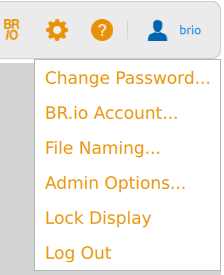
| 2. | Tap your user name in the upper-right corner, and then tap BR.io Account... |
The system displays a message indicating the account is not linked.
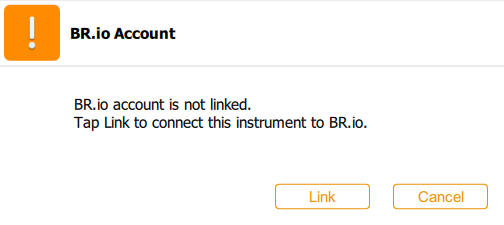
| 3. | Tap Link. |
A message with an authentication code appears on the touch screen.
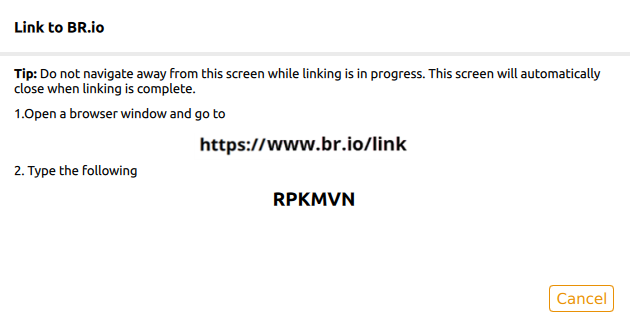
Note: The authentication code is valid for one hour after it is retrieved. If you have not linked your instrument within that time frame, return to step 1 and repeat the procedure.
| 4. | Follow the on-screen procedure: |
| a. | Open a web browser and navigate to the link specified in the Link to BR.io dialog. |
| b. | Enter the code that appears on the Link to BR.io dialog and click Submit. |
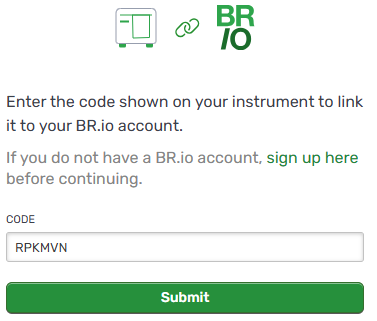
| c. | When the confirmation page appears, click Confirm & Link. |
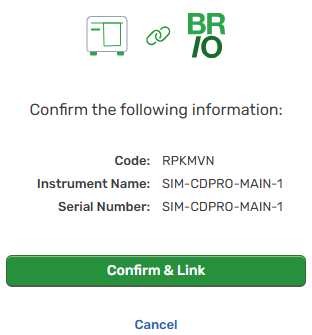
| d. | In the Link to BR.io dialog, click OK. |
Note: After connecting to BR.io, you can automatically export images to BR.io by selecting the Auto Send to BR.io checkbox in Image Lab Touch. To enable automatic export, see Automatically Exporting Images from ChemiDoc Pro to BR.io.
After you establish the connection to BR.io:
| ● | The BR.io icon appears in the menu bar of the touch screen. |
| ● | In BR.io, the linked instrument appears on the Instruments page and in the Recent Instruments section of the Home page. |
Important: In BR.io, the linked instrument is identified by its serial number.
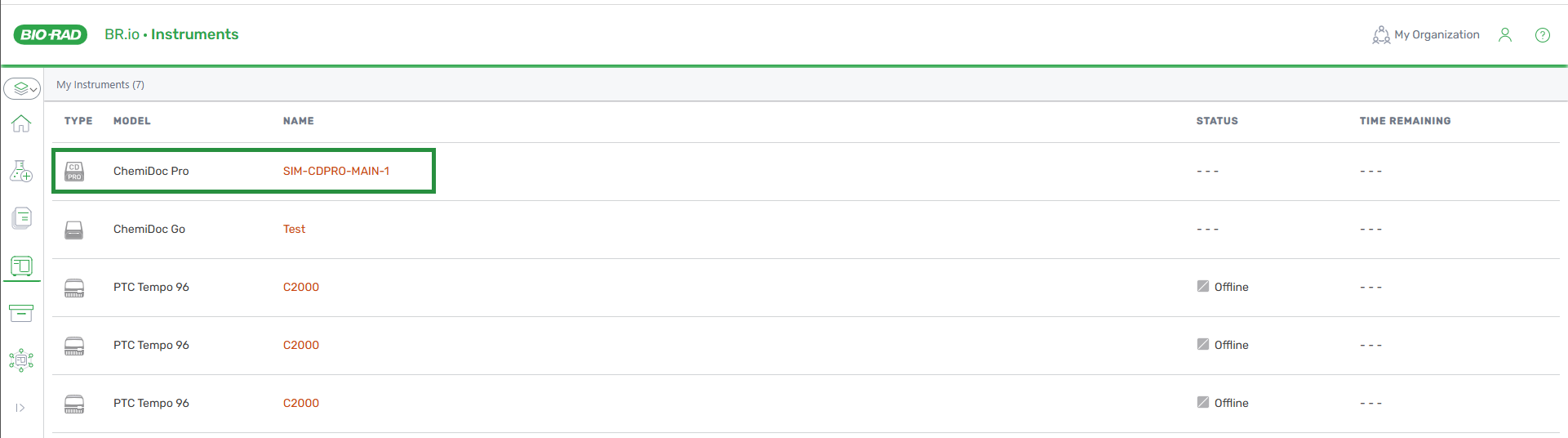
Click the instrument to display the instrument serial number and name.

